
The audit log page in the Keyfactor Command Management Portal allows you to perform searches for all the audit logs stored in Keyfactor Command, view details for them, validate that they have not been tampered with, and output selections of them in CSV format.
System Settings → Audit Log
 Searching Audit Logs
This page supports the standard query format described in Using Search in the Management Portal and includes its own set of query parsers specific to this operation. Use the following parsers to filter and refine results for this page.
The user who performed the audited action, in the format DOMAIN\username for Active Directory authentication or typically just the username for an identity provider other than Active Directory. For actions initiated by the Keyfactor Command Service, this will be Timer Service. Supports the %ME% token (see Advanced Search).
-
Level
The logging level of the message:
- Information
A successful operation that changes the state of the data in the application - Warning
Notification of a possible malicious access attempt (for example, an unauthorized user attempting to access a web page) - Failure
Notification that a user was denied access to an activity (this can be used to alert to a possible internal role security issue)
- Information
-
Timestamp
The time at which an action took place. Supports the %TODAY% token (see Advanced Search).
-
Category
The area of the product in which the auditable activity occurred. This list is built dynamically to show only those categories that are actually in your audit log. Select a category (for example, Enrollment
Certificate enrollment refers to the process by which a user requests a digital certificate. The user must submit the request to a certificate authority (CA). Pattern) and for most categories an optional subsearch field (for example, Template A certificate template defines the policies and rules that a CA uses when a request for a certificate is received. Defaults for templates) to find entries related to that category and optional subsearch field (for example, any changes made to template default settings). See Audit Log Categories for a complete list of possible categories.
-
Name
The name of the object being audited. The name of the object is related to the category of auditable activity. If the category is template, the name will be the template name. If the category is SSH
The SSH (secure shell) protocol provides for secure connections between computers. It provides several options for authentication, including public key, and protects the communications with strong encryption. user, the name will be the username of the user owning the SSH key. If the category is expiration alert, the name will be the expiration alert name. Some category to name relationships are more clear than others.For example, in the following audit message for a certificate enrollment, the name is the DN
A distinguished name (DN) uniquely identifies an entry in an LDAP/X.500 directory by specifying a sequence of relative distinguished names (attribute=value pairs) from the entry up to the directory root. It’s written as a comma-separated string—for example: cn=Alice,ou=People,dc=keyexample,dc=com—with the specific attributes defined by the directory’s schema. of the certificate:The user 'KEYEXAMPLE\ggant' Created Certificate, 'CN=appsrvr12.keyexample.com,L=Chicago,ST=IL,C=US'In the following workflow
A workflow is a series of steps necessary to complete a process. In Keyfactor Command, it refers to the workflow builder, which allows you to automate event-driven tasks such as when a certificate is requested, revoked or found in a certificate store. instance message, the name is the entire title of the workflow instance:The User 'KEYEXAMPLE\mjones' Completed Workflow Instance, 'KEYEXAMPLE\mjones is enrolling for a certificate with CN=websrvr12.keyexample.com.'In the following certificate collection
The certificate search function allows you to query the Keyfactor Command database for certificates from any available source based on any criteria of the certificates and save the results as a collection that will be available in other places in the Management Portal (for example expiration alerts and certain reports). message, the name is the name of the certificate collection that was created:The user 'KEYEXAMPLE\jsmith' Created Certificate Query, 'Revoked Certs'When you open the details for an audit log record, the name appears at the top of the details dialog as the second part of the dialog title (see View: Audit Log Details).
-
Operation
The type of operation performed. See Audit Log Operations for a complete list of the available operations.
Download CSV
Click the Download CSV button at the top of the audit log grid to generate and download a comma-delimited CSV file containing all audit log records per the search criteria applied to the grid. The CSV file will contain the information shown in Table 67: Audit Download CSV Records for each exported record.
Table 67: Audit Download CSV Records
| Field | Description |
|---|---|
| Id | Sequential Internal reference number. |
| Timestamp | The date and time the auditable change was made. |
| Message | The message displayed on the audit log grid. This field contains a human-readable summary of the change and is made up of the user who took the auditable action, the action the user took, the category the user acted upon, and the name of the object acted upon. |
| Operation | The operation type (for example, Created, Updated, Deleted). For a list of possible operations, see Audit Log Operations. |
| Level | The logging level of the message (for example, Info, Warning). Most messages are generated at Information level. |
| User | The user taking the action that generated that audit log, in DOMAIN\username format for Active Directory users. For actions initiated by the Keyfactor Command Service, this will be Timer Service or command-svc. |
| Category | The area of the product in which the change was made (for example, Certificates, Templates, Application Settings) as per the available values in the Category field in the audit grid. For a list of possible categories, see Audit Log Categories. |
| Name | The specific object the action was taken on (for example, the template name for a template change or the application setting name for an application setting change). |
| XMLMessage |
The details of the change that was made in XML format. This field contains both the before state and the after state where applicable (for example, an application setting that was configured as true before the change and false after the change). For example, this entry indicates that a change was made to the key retention policy (the template name the change was made to is specified in the Name field) to change the number of days for retention from four days to seven days: Copy
|
View: Audit Log Details
To view audit log details for an audit log record, select an entry in the audit log grid and click View from the toolbar or right-click menu.
The information displayed in the audit log details dialog varies based on the category and object type being audited, as well as whether the audit entry represents a new event or an update to an existing object. Depending on the audit event, the dialog may display a single set of details or a comparison of values before and after a change.
Audit Entry Name (Dialog Header)
The audit entry name appears in the title bar at the top of the dialog. It includes both the audit category and the display name of the audited object, and is useful when defining audit log search criteria.
Examples include:
-
Template: Template Display Name
-
Identity Provider: Identity Provider Display Name
Details
The Details section appears directly below the dialog title and summarizes when, how, and by whom the audited action occurred.
-
Operation
The type of activity that generated the audit log entry (see Audit Log Operations).
-
Time
The time and date that the audit log entry was generated.
-
User
The user account that performed the audited action.
-
Category
The area of the product in which the auditable activity occurred (see Audit Log Categories).
-
Validation Status
Indicates whether the audit log entry stored in the database is valid or invalid.
Note: The validation status of any audit log item can be viewed as or
or  .
.
Selecting a different entry in the Related Entries section will change the display in this section.
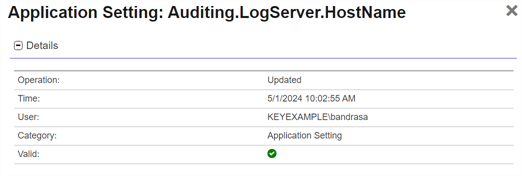
Figure 456: Details Section of the Audit Log Details
Selected Entries Tab
The Selected Entry tab displays the detailed information captured for the currently selected audit log entry.
The layout and content of this tab vary based on the type of audit event:
-
Creation events
For entries that record the creation of an object (such as a certificate), the tab displays the details captured at the time the object was created. This information may appear in a labeled section (for example, Certificate Created) and can include structured data such as timestamps, subject information, and key attributes. The Before Changes section will be present but contains no values.
-
Update events
For entries that record updates to an existing object (such as a template), the tab displays a comparison of values before and after the change. Only fields whose values changed as part of the audited action are shown. Fields containing sensitive data are masked and displayed as ******.
The specific fields and sections shown depend on the category and object type being audited.
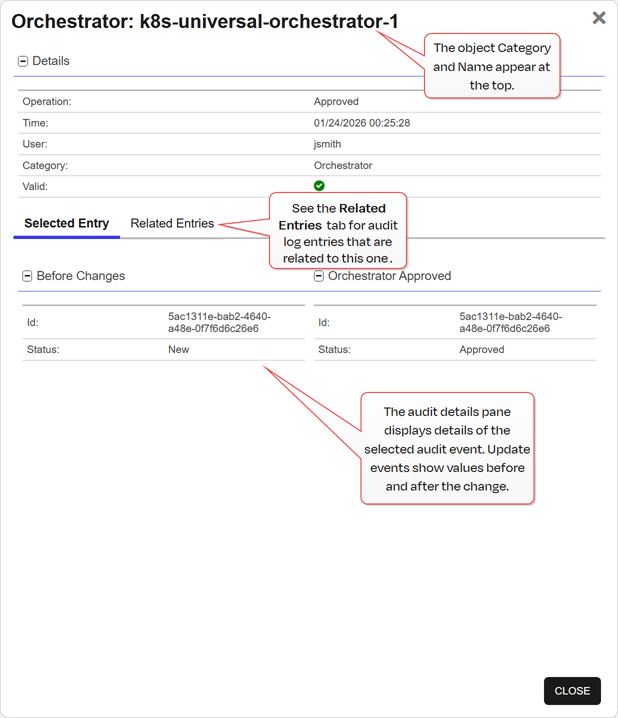

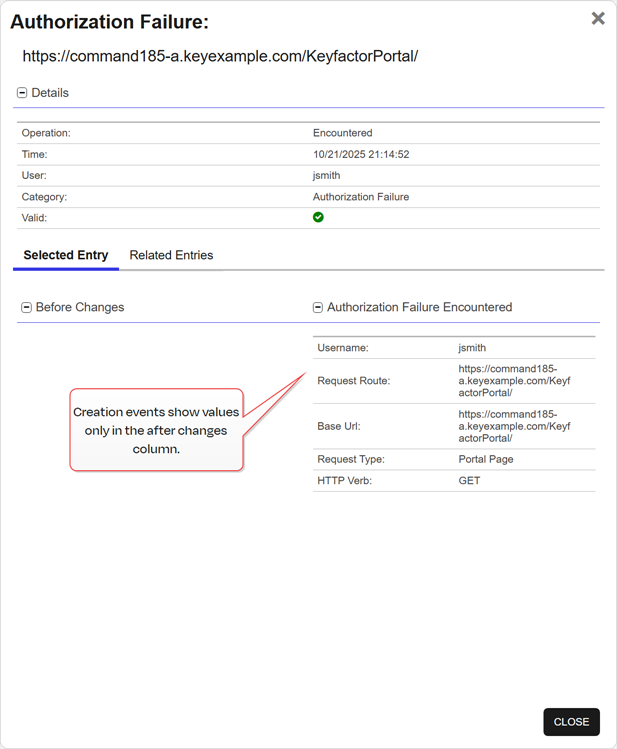
Figure 457: One and Two Column Audit Log Details
Related Entries
The Related Entries tab displays a history of other audit log entries associated with the same object (for example, changes made to the same certificate or template).
From this tab, you can:
-
Review the list of related audit events
-
Sort entries by Time or User by clicking the column headers
-
Select an entry and click View to load its details into the dialog
When a related entry is selected, both the Details and Selected Entry sections update to reflect the newly selected audit log record.
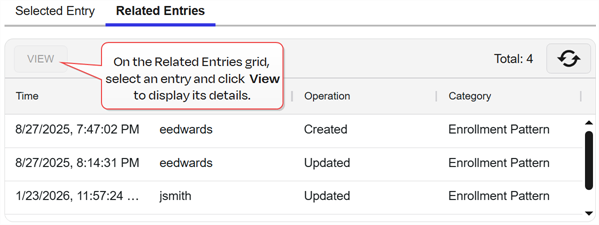
Figure 458: Related Entries Section of the Audit Log Details
Validate
Select an entry in the audit log grid and click Validate to verify the integrity of the audit log data. The validation dialog indicates whether the selected entry is valid or has been tampered with.
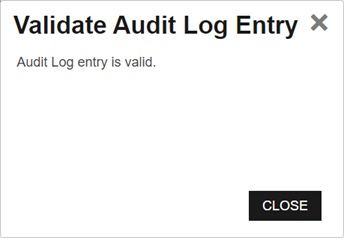
Figure 459: Audit Log Record is Valid
 or
or  will be shown.